
Split Volume · A free app for Mac
If Apple won't respond, I will.
My solution to Apple's incessant FaceTime audio ducking.
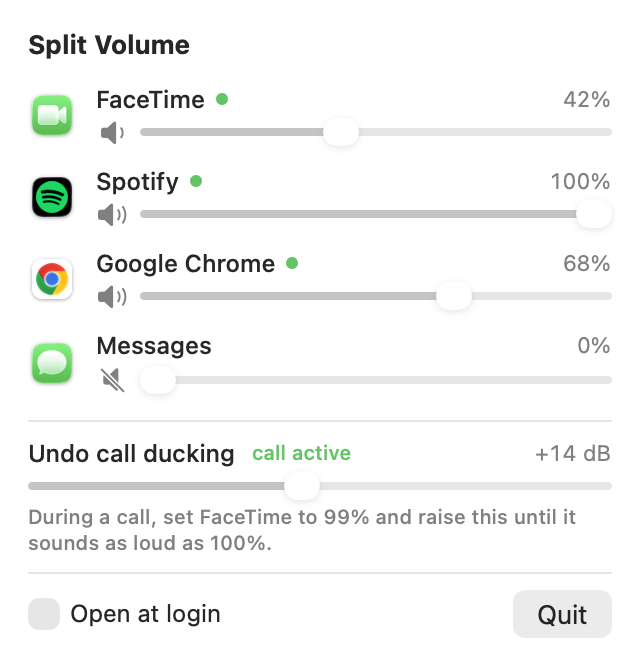
Split Volume lives in your menu bar and gives each app on your Mac a slider of its own. Turn a FaceTime call down to a comfortable level and keep your music, your edit and your browser exactly where you like them.
Version 1.0 · 0.6 MB
macOS Sonoma 14.4 or later · Apple silicon and Intel
Made for calls
Turn the call down. Keep the work up.
I built Split Volume for the calls that run alongside a working day: family checking in, a coworker on the line while we both get things done. One slider sets the call to a comfortable level, and every other app stays exactly where you left it.
Your music stays at full voice during calls, too. macOS turns everything else down while a FaceTime call is running, and after years of complaints there is still no setting to stop it. So I built one. Split Volume brings it all back up: set the Undo call ducking slider once, and every app plays at its normal level for the length of every call.
Each app's setting is remembered. Set FaceTime to 40% today and it starts there on your next call.
Getting started
Running in under a minute.
-
Install
Open the download and drag Split Volume into your Applications folder, then open it from there.
-
Find it in the menu bar
Click the slider icon at the top of your screen. Every app that plays sound has its own row, and a green dot marks the ones playing right now.
-
Slide
Move any app's slider. The first time, macOS asks to allow System Audio Recording for Split Volume. Choose Allow and you're set.
Questions
Good to know.
- What does it cost?
- Split Volume is free, with every feature included.
- Why does it ask for System Audio Recording?
- That permission is how macOS lets one app adjust another app's sound. Split Volume picks up an app's audio and plays it straight back at the level you chose, all on your Mac. It works completely offline and keeps nothing.
- Which apps does it work with?
- Anything that plays sound: FaceTime, Spotify, Music, Chrome, Safari, Slack, Discord, games and more. An app appears in the list as soon as it plays audio.
- Can it start with my Mac?
- Yes. Tick Open at login in the panel.
- How do I remove it?
- Choose Quit in the panel, then drag Split Volume from Applications to the Trash. Every app returns to its usual sound right away.
Give every app its own volume.
Download for MacMade in Knoxville by Taylor Mac Brown, who also builds Studio Timer.